

Photo Mechanic is a RAW previewer. When you open a Contact Sheet with RAW, you will see the embedded raw preview.
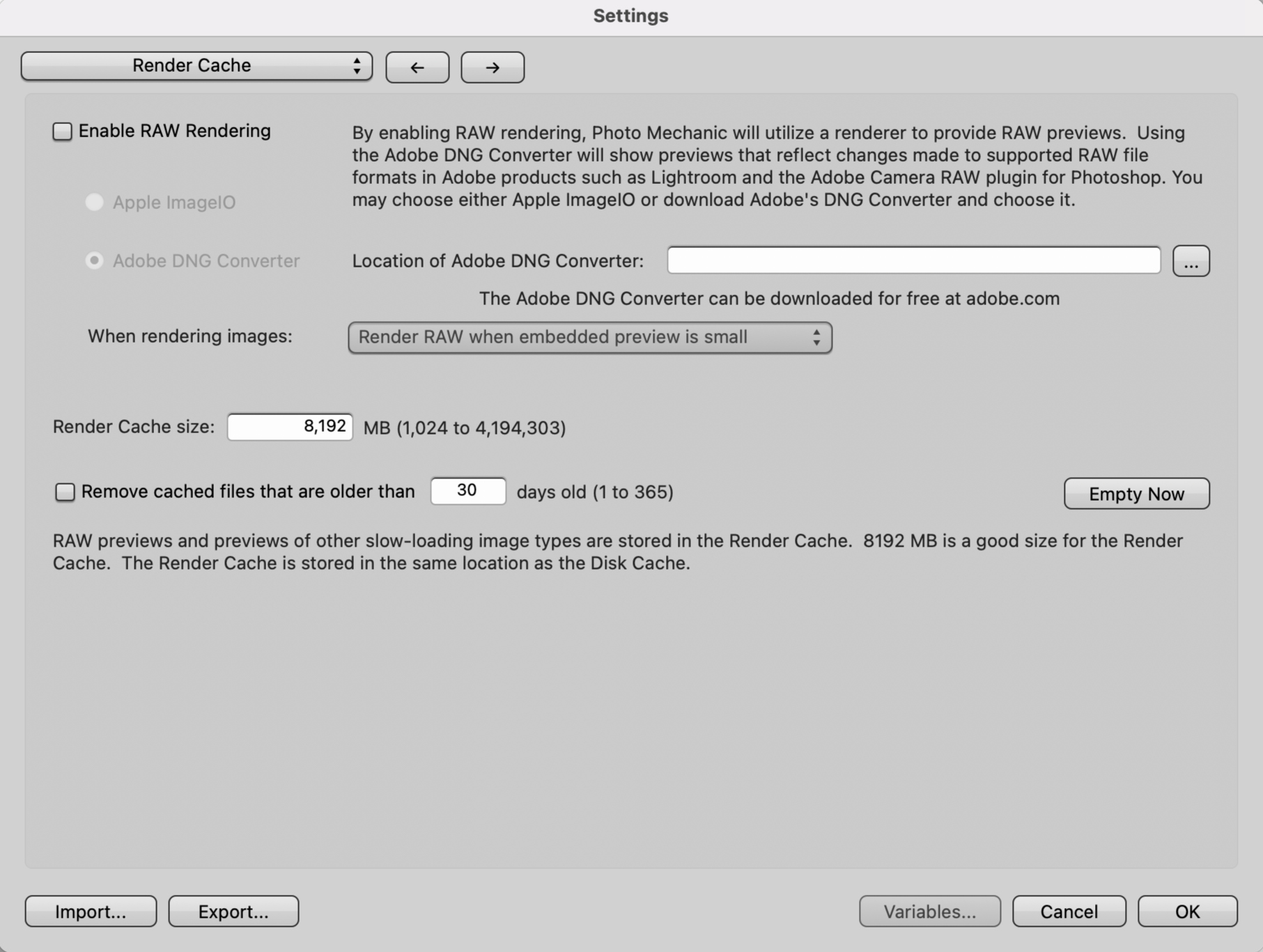
Enable RAW Rendering: select this checkbox to render RAW previews. This is helpful if you have made pixel edits to RAW files in RAW editing programs, such as Adobe Lightroom®, and want to see the visual changes in Photo Mechanic.
Enabling RAW Rendering allows Photo Mechanic to display thumbnails and previews for RAW files that either do not contain embedded JPEG previews - such as certain Hasselblad RAW files, RAW files that have low resolution embedded JPEG previews - such as ARW files from certain Sony mirrorless cameras that contain 1616x1080 resolution previews.
Adobe DNG Converter can be downloaded from Adobe at: https://helpx.adobe.com/camera-raw/using/adobe-dng-converter.html
For Photo Mechanic on MacOS, you can choose Apple ImageIO or Adobe DNG Converter to render RAW files.
Once Adobe DNG Converter is downloaded, you need to specify where the app is located on your computer by selecting the "..." button to the right of the textbox for Photo Mechanic on MacOS, or the "Choose" button for Photo Mechanic on Windows.
If you want Photo Mechanic to display thumbnails and previews that show color edits made in Adobe products, install and select Adobe DNG Converter as the RAW renderer. We recommend using Adobe DNG Converter at least once after initially installing it to adjust its preferences. For example, changing the Preview size from 'Medium Size' to 'Full size'.
Adobe Photoshop automatically saves color edit metadata to XMP sidecar files, so no further action is needed. If you use Adobe Lightroom Classic, its settings will need to be changed to automatically write changes to XMP sidecar files, or you must manually save the changes to XMP sidecar files in order for Adobe DNG Converter to render the RAW files with any color edits applied. Refer to the following Adobe support article for instructions: https://helpx.adobe.com/lightroom-classic/help/create-xmp-acr-files.html
When rendering images (available on MacOS only):
- Always render RAW photos: if RAW Rendering is enabled, RAW files will be rendered when opened in a Contact Sheet
- Only render RAW photos on demand: Use the “Toggle Render Quality” keyboard shortcut - Q key by default - to render RAW files selected in the Contact Sheet, or while viewing RAW files in the Preview window.
- Render RAW when embedded preview is small: Some camera manufacturers or specific camera models may include an embedded JPEG preview that is less than the full-size resolution that the image sensor is capable of. When this option is selected, a higher resolution preview is rendered and displayed in Photo Mechanic’s Preview window.