

TABLE OF CONTENTS
Overview
Photo Mechanic can save out your images as JPEG, TIFF, PSD, or WebP files.
To use the 'Save As' window, you will first need to select one or more images on the contact sheet, or be viewing an image in the Preview window. The 'Save As' window can be called up with one of the following methods:
- Keyboard Shortcut:
- With a single image selected, or from the Preview window:
- MacOS/Windows: S
- With multiple images selected on the Contact Sheet:
- MacOS: Command+S
- Windows: Ctrl+S
- With a single image selected, or from the Preview window:
- File menu:
- Save Photos As...
- Right-click menu:
- Save photo as/Save Selected Photos As (depending on how many items are selected)
In the Save As window, you will see four main sections:
- Image Type
- Image Processing
- Operations
- Destinations
Once the options in each of these sections is set to the requirements of the files you would like 'Save As' to produce, MacOS users can click 'Save', and Windows users can click 'OK', and Photo Mechanic will perform the Save As operation on each image in your selection.
Save as always creates a new file, and will not overwrite files in the destination. If Photo Mechanic is trying to create a file in a place where a file of that name already exists, it will use the Renaming Resolution setting found in the Files preferences to create unique file names.
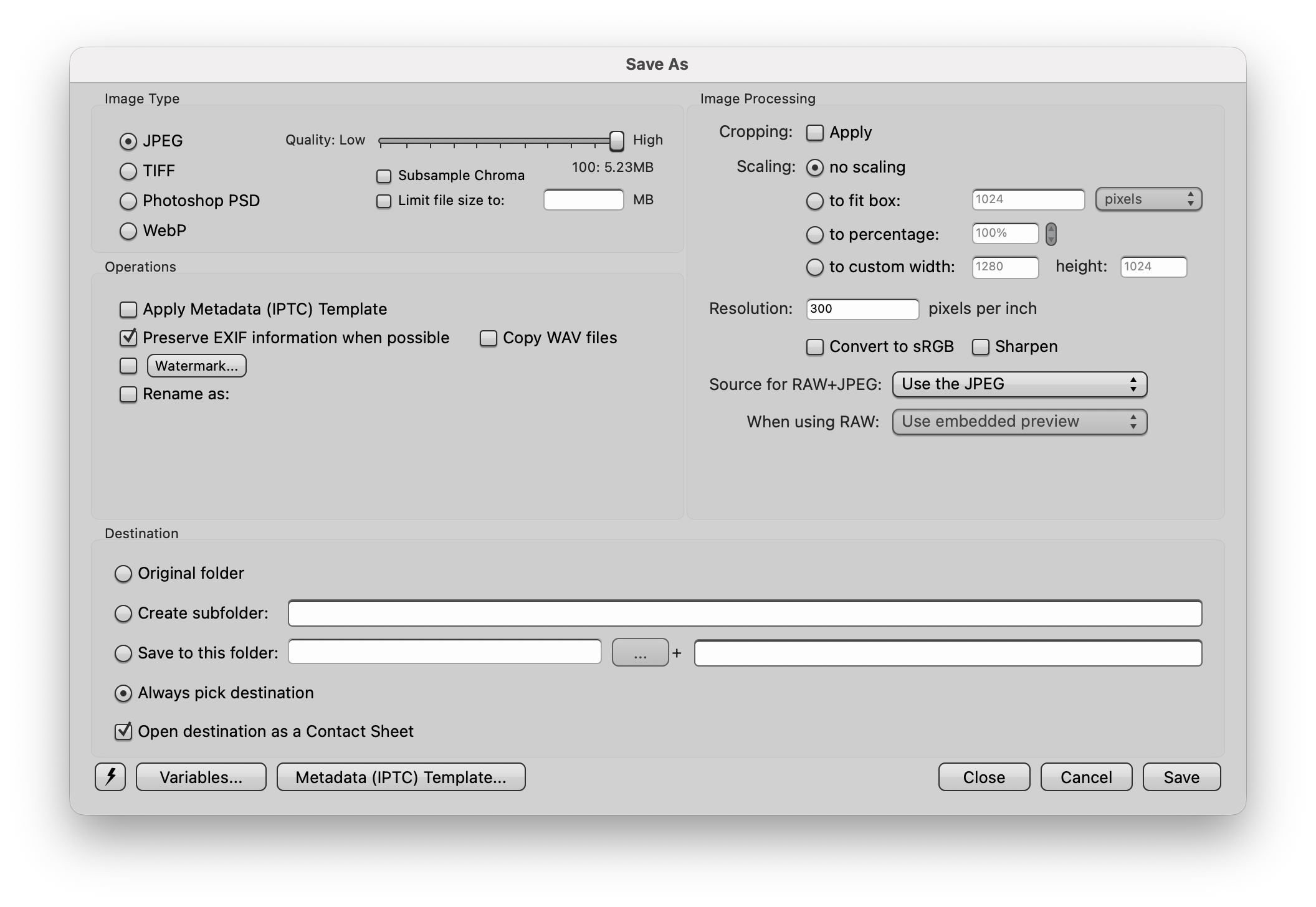
Image Type
The type of file that the Save As operation will output
- JPEG:
- Choosing JPEG as your output type enables the Quality slider. A low quality image will be more compressed and have a smaller filesize, and a high quality image will be minimally compressed and have a larger filesize. An estimate of the resulting file from the Save As operation will be shown below the Quality slider. If multiple items are selected, this estimate will be based on the first item selected.
- If Limit File Size is enabled, Photo Mechanic will attempt to make the best quality image possible within the filesize limit. The Quality slider is disabled when this option is enabled.
- If Subsample Chroma is enabled, some chroma information is removed, allowing for a further reduction in file size at the expense of color quality
- TIFF
- Photoshop PSD
- WebP:
- Choosing WebP as the output type enables the Quality slider.
Image Processing
- Cropping: If a Crop has been defined for an image, selecting this check box will apply it when the file is saved.
- Scaling:
- No scaling: scaling is not applied
- To Fit is for when you want an image to fit inside a specified pixel or cm dimension, whether it is oriented horizontal or landscape.
- To Percentage sizes the image to the specified percentage size, e.g. 50% would result in an image half as high and half as long as the original and 200% would double the linear image dimensions.
- To Custom allows for full control over the width and height dimensions in pixels
- Resolution: Sets the pixels per inch of the saved file.
- Convert to sRGB: select if you want to convert the resulting file's color profile to sRGB
- Sharpen: select if you want to apply sharpening to the resulting image
- Source for RAW+JPEG: Choose between 'Use the RAW' and 'Use the JPEG'
- When using RAW: Choose between 'Use embedded preview' and 'Render RAW if possible'. 'Render RAW if possible' is only available if RAW Rendering is enabled and setup in Settings>Render Cache
Operations
- Apply Metadata (IPTC) Template: adds whatever is currently set in the Metadata (IPTC) Template to all the selected images.
- Preserve EXIF Info: Includes as much EXIF Info as the original file contains.
- Copy WAV Files: Copies any WAV files associated with each file.
- Watermark: Apply a watermark
- Rename: Uses the standard Photo Mechanic renaming tools to generate new names. See Renaming.
Destination
- Original folder: Saves files back to the same folder as the original file. If filename collisions occur then the new files will be renamed according to your renaming resolution choice.
- Create subfolder: Creates a subfolder in the same folder where the original file resides. You can use variables to create the name(s) of your subfolder(s).
- Copy to this folder: Saves files to the base path plus an additional (optional) subfolder. You can use variables to create the name(s) of your subfolder(s).
- Always pick destination: Allows you to choose where the files are saved to each time you perform the Save As operation. A folder picker window from the operating system's file browser will appear after selecting the 'Save' button on macOS or the 'OK" button on Windows.
- Open destination as Contact Sheet: Opens the destination folder as a new contact sheet tab if it is not already open.