

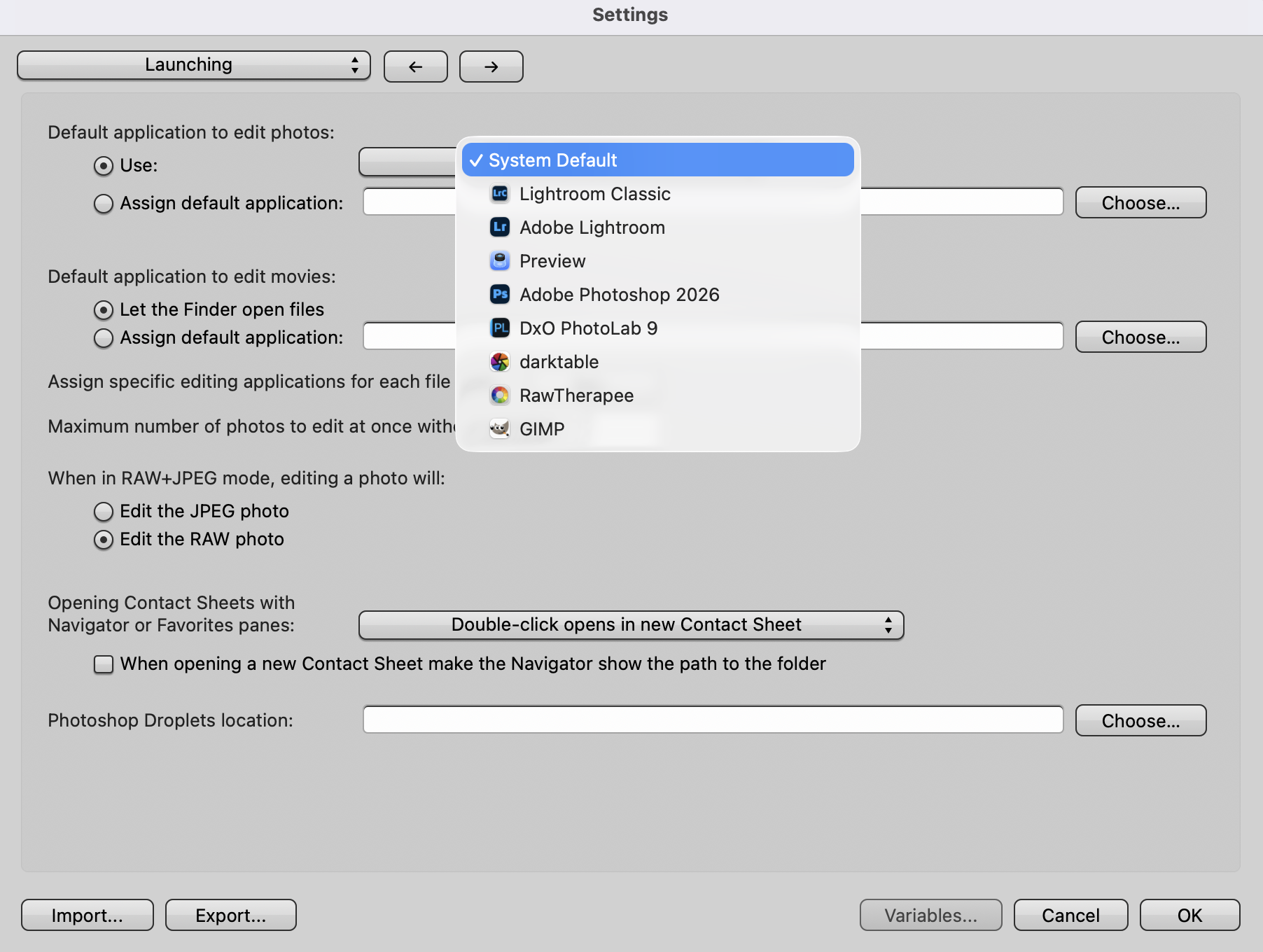
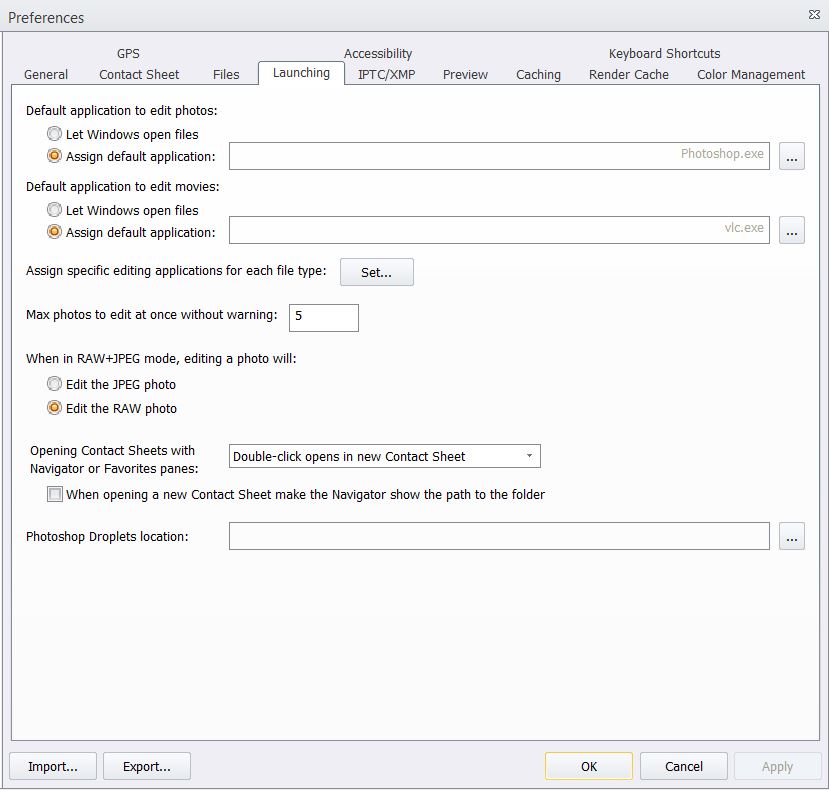
Before using this function you need to define your default application to edit photos in Launching Preferences. Settings>Launching on macOS or Preferences> Launching on Windows.
There are several ways to open an image into an external editor:
- Select an image or group of images and choose Image>Edit Photos from the main menu. The external editor with be launched if it is not already active and the selected images will be opened.
- Use the Edit Photos keyboard shortcut: ⌘E (Command-E) on macOS or Ctrl-E on Windows.
- Right-click on the selected image(s) and choose one of the following options:
- Edit photo - sends only the one image file that the mouse cursor is hovering over
- Edit photo with - when you hover over this option, a sub-menu appears with a list of external editors to choose from to send the one image file to
- Edit Selected photos - sends all selected images to the default application to edit photos
- Edit selected photos with - hover the mouse over this option to see a list of editing applications to choose from. More editing applications can be added to this list in Launching Preferences.
- You can also drag and drop images and image selections directly from Photo Mechanic into an open Image Editor, even if it is not the one defined in Preferences as the default editor. You can drag and drop selected images to the open application or to the application's icon in the Dock on macOS or the Taskbar in Windows. Note: some versions of Windows may not support drag and drop to the Taskbar.
Photo Mechanic integrates with other photo editing programs, such as Adobe Photoshop® and Lightroom®. If you are working with JPEGs or the DNG format, any changes made and saved will be reflected in the thumbnail in the Contact Sheet display. If you are working with other Raw formats, then the editing software will need to update the embedded JPEG preview in order for the changes to be visible in Photo Mechanic. (As an example, if you make changes made to Raw files in Adobe Camera Raw, you will not see updated thumbnails in Photo Mechanic. If you are working with DNG's in Camera Raw, you can go into Adobe's Camera Raw preferences and make sure that "Update embedded JPEG previews" is turned on.)
One possible way to work with Raw files in an external editor is to save a JPEG with the same base name in the same folder as your Raw. Photo Mechanic works well with RAW+JPEG pairings so this is a good way to see your changes in Photo Mechanic when working with Raw files.