

TABLE OF CONTENTS
Photo Mechanic allows you to rate photos using a scale of 1-5 stars. Star ratings can be used in conjunction with tags and color classes. Star ratings are compatible with many other photo editing tools, so you can rate photos in Photo Mechanic and retain those ratings in other products later.
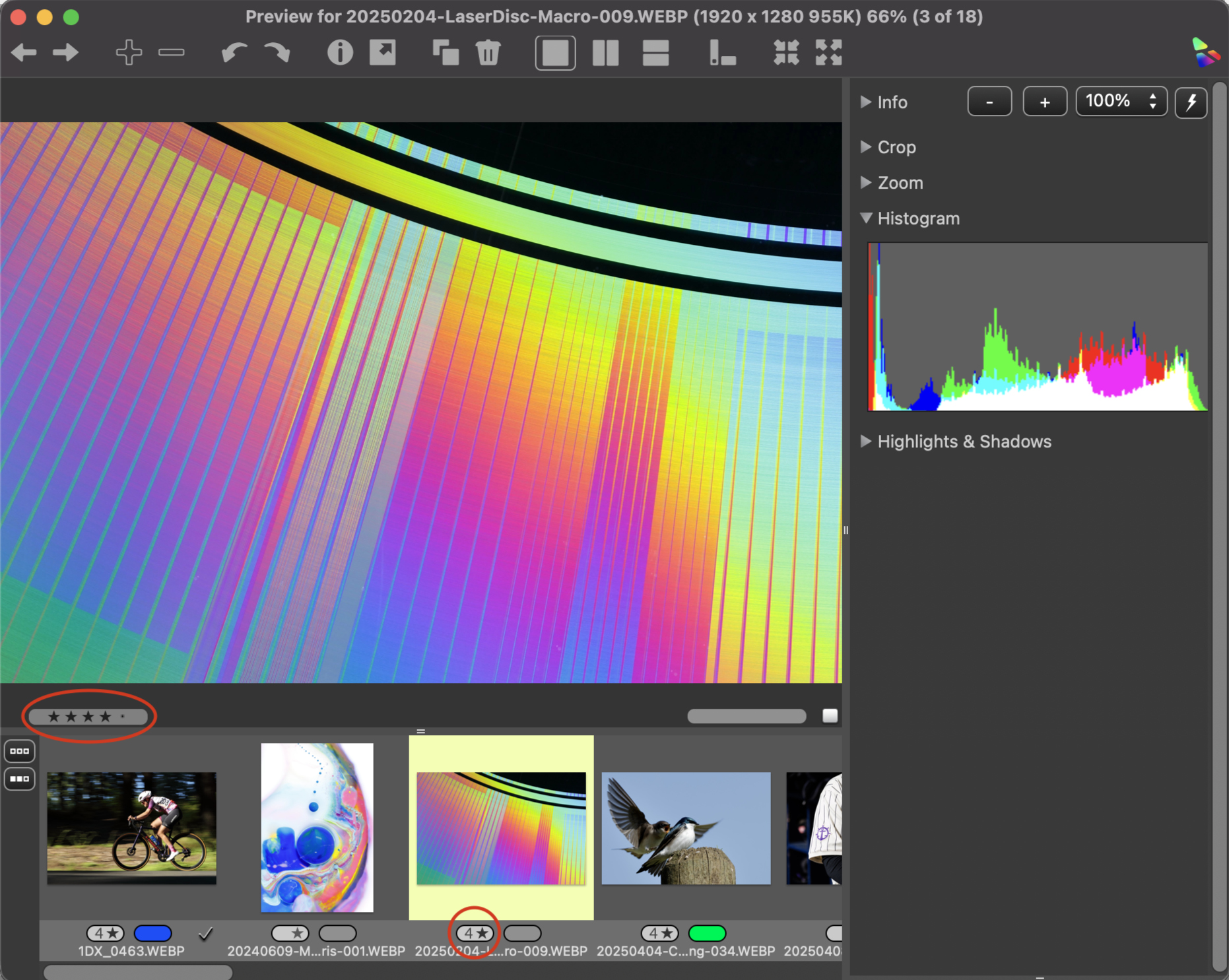
As with tags and color classes, star ratings appear below thumbnails in contact sheets and preview windows.
Applying a Star Rating
You can assign star ratings in multiple ways:
- Select the preferred number of stars below the photo thumbnail in the Contact Sheet.
- Select one or more photos and use Image > Set Rating of Photos:
- Use the keyboard shortcut of control 1-5 and control-0 to remove a rating for macOS or Alt 1-5 and Alt-0 on Windows (or just 1-5 and 0 if set in preferences)
Note: By default, color class ratings are set to use a single key shortcut, but if you want to change this, you can go to Settings/Preferences: Keyboard Shortcuts, select the Snapshot button, then choose "Numbers set Star Ratings".
Filtering by Star Rating
You can filter your view in a contact sheet by start rating by using View > Ratings: and selecting the minimum rating that you want to see, for example, 3 or more stars. You can also use the star rating widget on the top of the contact sheet for more granular filtering. With the star rating widget, the star next to the number in the widget indicates that photos with that rating will be visible. You can click and drag the mouse over the Stars to include more ratings.
In the following example, only photos with zero or two stars will appear in the contact sheet:

To actually select images on the contact sheet with Star Ratings assigned, use Edit->Select Rating or the associated keyboard shortcut.
For example,Command-Option-3 on macOS will select all images currently displayed in the contact sheet with a Star Rating of 3. Ctrl-Shift-3 on Windows will do the same.
To set a default, set the Widget to display the Star Rating(s) that you want, and right-click or Ctrl-click on macOS on the Widget and select Set as Default. Later, you can reset the Widget to default by right-clicking and choosing Restore to Default.
The check box to the left of the Star Rating Widget enables/disables the filtering effects of the Widget.
To reset the Widget to show all star ratings: