

Photo Mechanic has tools to rotate both a single image as well as a selection of multiple images.
On the Contact Sheet
Hover your cursor over a single image and buttons will appear at the corners of the Contact Sheet Thumbnail.
Select the counter-clockwise arrow button or clockwise arrow button to rotate the image.
You can alternatively use the Contact Sheet's "Rotate 90 degrees counter-clockwise" keyboard shortcut, the open square bracket: [ , or the "Rotate 90 degrees clockwise" keyboard shortcut, the close square bracket: ] .
Keyboard shortcuts can be customized in Setting->Keyboard Shortcuts.
To rotate multiple images at once, select more than one image in the Contact Sheet, then use the Image menu's "Rotate Photos CCW" or "Rotate Photos CW" options or the assigned keyboard shortcuts.

In the Preview Window
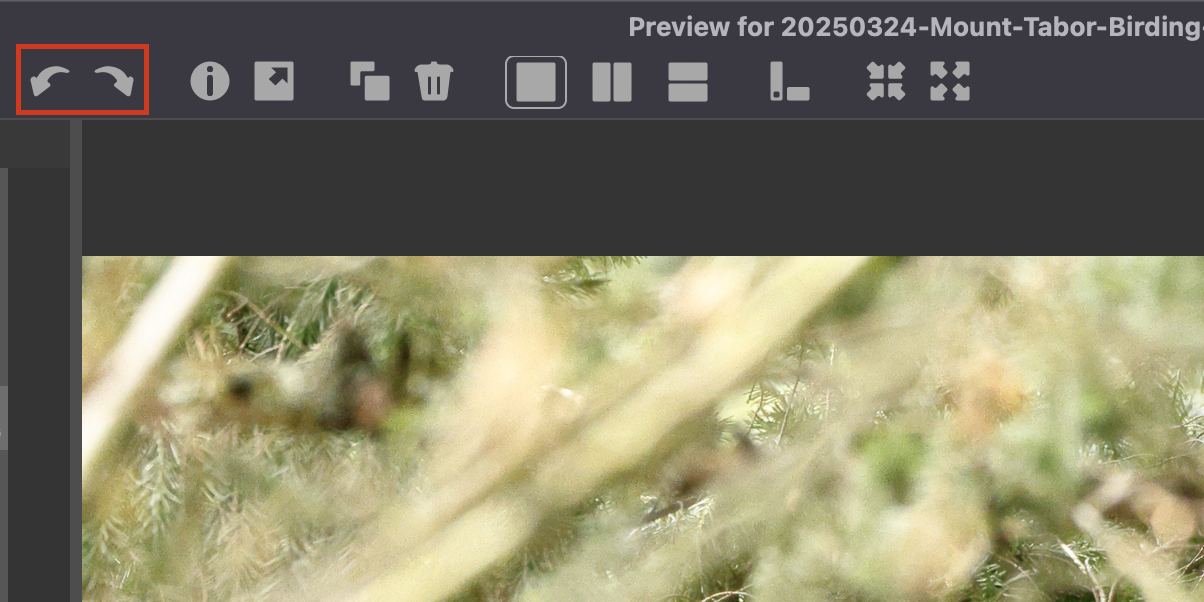
Select the counter-clockwise arrow button or clockwise arrow button in the top toolbar to rotate the image displayed in the Preview window. You can alternatively use the Preview window's "Rotate 90 degrees counter-clockwise" keyboard shortcut, the open square bracket, [ , or the "Rotate 90 degrees clockwise" keyboard shortcut, the close square bracket, ] . Keyboard shortcuts can be customized in Setting->Keyboard Shortcuts.
Many cameras have a sensor used for detecting the camera's orientation. That information is saved to embedded EXIF metadata in the image file. Photo Mechanic uses this EXIF orientation data (if available) when displaying your photos.
Rotating a photo in Photo Mechanic only changes the EXIF orientation flag value. If you open a photo in other software, it may or may not read the EXIF data, so you may find that photos have "lost" their rotation when you open them in image editing software.
'Apply Rotation to JPEGs...'

You can force a "hard" rotation on JPEGs by re-writing the pixels to the desired orientation using Tools>Apply Rotation to JPEGs... Once you do this, your JPEG photos will appear in the same orientation in other software.